
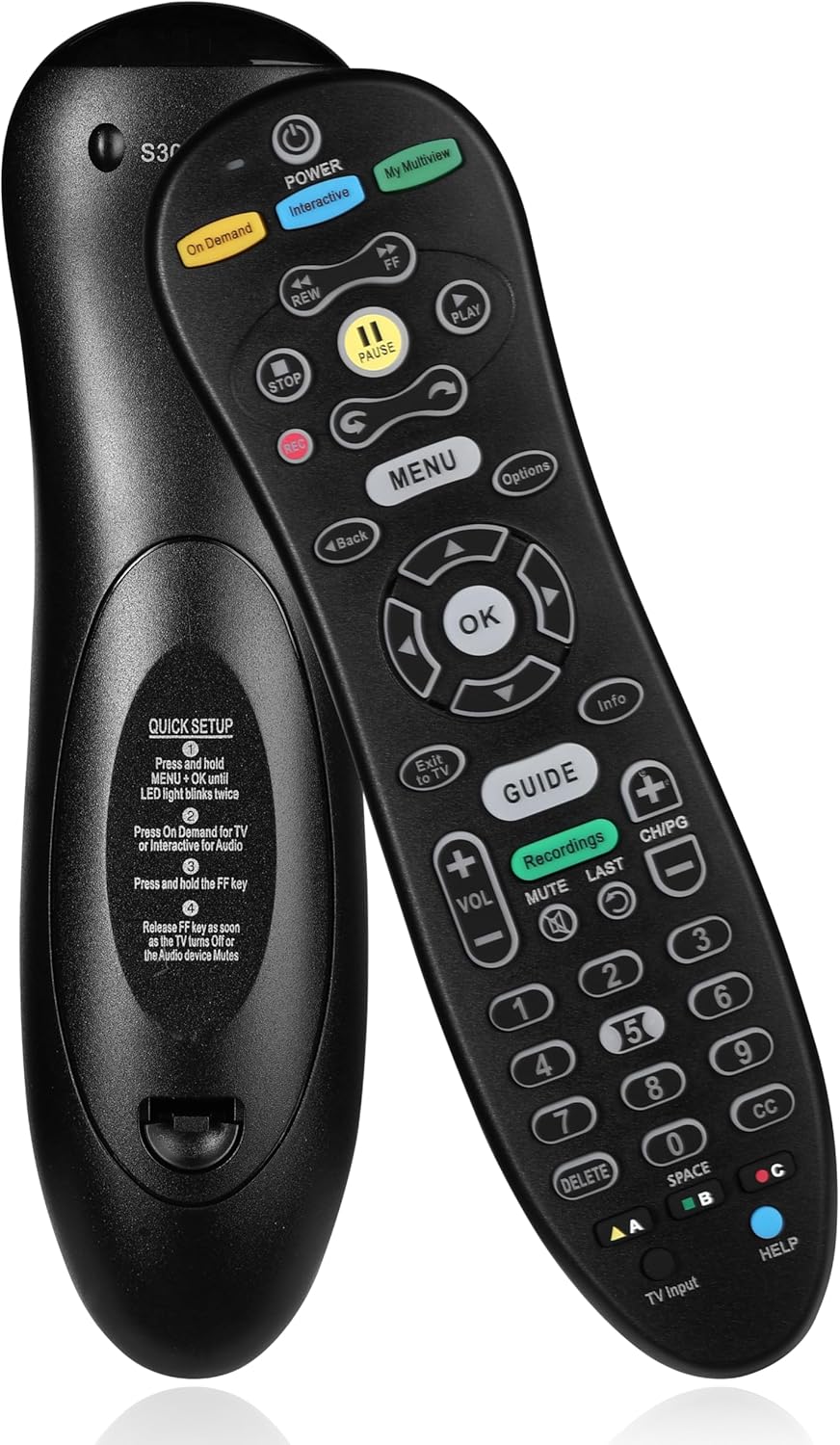
S30 S30-S1B Remote for AT&T U-Verse Receiver, S30 Remote Replacement with U-Verse Receiver Cable Box ISB7005 ISB7000, Remote with Backlit Function
Product details
| Management number | 239757034 | Release Date | 2026/07/14 | List Price | US$10.75 | Model Number | 239757034 | ||
|---|---|---|---|---|---|---|---|---|---|
| Category | |||||||||
S30-S1B Remote Control Compatible with Uverse U-Verse Receiver Cable Box ISB7000 ISB7005Summary of S30-S1B Remote Control Setup Steps(Based on AT&T U-verse official adaptation logic and general operations for similar models, mainly applicable to controlling audio-visual devices like TVs, audio systems, and DVDs) I. PreparationsInstall Batteries: Open the battery compartment on the back of the remote, insert 2 AA batteries (ensure correct polarity alignment), and close the compartment. Confirm the remote’s indicator light illuminates normally.Device Status: Ensure the target device (TV, audio system, etc.) is powered on and turned on. Keep the remote within 1 meter of the device, with no obstructions.Key Note: The S30-S1B and S20 remotes have identical functions (only the S30 supports backlighting). Setup instructions for the S20 are fully applicable. II. Core Setup Methods (By Device Type)▶ 1. TV Control Setup (Three Options)Option 1: Quick Setup for Popular Brands (Recommended for Mainstream Brands)Press and hold 「Menu」 + 「OK」 until the indicator flashes twice to enter programming mode (indicator stays on).Press 「On Demand」 (to specify the TV device type) – the indicator remains steadily red.Select your TV brand (e.g., TCL, Samsung, etc.) from the list and follow prompts to complete pairing.Test: Press 「Power」 to try turning off the TV. If successful, setup is complete; if not, switch to Option 2 or 3.Option 2: Automatic Code Search (Suitable for All Brands)Repeat Step 1 (press and hold Menu + OK until indicator flashes twice), then press 「On Demand」.Press and hold 「FF」 (Fast Forward) until the TV turns off automatically or the indicator changes – release 「FF」 immediately.Press 「Power」 to turn on the TV, then test volume and channel switching. If functional, code matching is successful.Option 3: Manual Code Input (When Device Code is Known)Enter programming mode (Menu + OK flash twice), then press 「On Demand」.Enter the device brand’s code via the remote’s numeric keys (findable on AT&T U-verse’s official site or device manual).After entry, the indicator flashes once to confirm. Test control functions; if abnormal, try another code.▶ 2. Audio Device Control Setup (Sound Systems, Amplifiers, etc.)Press and hold 「Menu」 + 「OK」 until the indicator flashes twice to enter programming mode.Press 「Interactive」 (to specify the audio device type) – the indicator remains steadily red.Choose a setup method:Automatic Search: Press and hold 「FF」 until the audio device mutes, then release and press 「Mute」 to test sound restoration.Manual Input: Enter the audio device’s brand code and press 「OK」 to confirm.Verify: Adjust volume keys to confirm device response – setup is complete.▶ 3. DVD/Auxiliary Device Control Setup (e.g., Blu-ray Players, Set-Top Boxes)Press and hold the corresponding device mode key (「DVD」 or 「AUX」) + 「OK」 until the mode key’s indicator stays on (enter the device’s dedicated programming mode).Enter code 「9-2-2」 to activate auxiliary device matching mode.For DVD/Blu-ray players, press 「Play」; for other auxiliary devices, press 「0」.Press and hold 「FF」 until the device responds (e.g., DVD powers on), then release and test play/pause functions. If functional, setup is complete. III. Precautions & TroubleshootingProgramming Timeout: Complete operations within 10 seconds after entering programming mode – otherwise, the mode exits and setup must be restarted.No Function Response: Check battery charge; confirm correct device code matching; re-align the remote with the device’s infrared (IR) receiver (avoid obstructions).Multi-Device Switching: After setup, press the corresponding mode key (TV/DVD/AUX) to switch controlled devices – the current mode key’s indicator will stay on.Reset Operation: To clear stored codes, press and hold 「Mode」 + 「OK」 for 10 seconds – the indicator flashes three times to confirm reset. IV. Supplementary NotesDevice Code Inquiry: Obtain matching codes via AT&T U-verse’s “Remote Control Setup Tool” or by contacting brand customer service.Compatibility: Only supports IR-controlled devices (not Bluetooth/wireless). It controls mainstream AV devices (TVs, audio systems, DVDs) but does not support smart device integration.
- Compatibility Allows Control of U-Verse S30-S1B Receivers, Smart TVs, Streaming Devices and Cable Boxes.
- Come with the Manual, Need Set up before using.
- Compatible with mainstream audio-visual devices such as TVs, audio systems, and DVDs. Three setup options are provided for TV control: quick matching for popular brands, automatic code search, and manual code input. Audio/auxiliary devices support one-click matching, easy for beginners to master quickly.
- It can be activated by installing 2 AA batteries. Operations must be completed within the 10-second programming time limit. It supports one-click switching of device modes; long-press "Mode + OK" for 10 seconds to reset and clear old codes. Note that it only supports infrared (IR) devices, so please confirm the device type before adaptation.
- 【One Year Warranty】 One Year Warranty!! Please Contact Us and We Will Give You a Reply within 24 Hours if You Have Any Inquiry.
| ASIN | B0F9YKNYPJ |
|---|---|
| Brand | Auilzlz |
| Color | Black |
| Model Name | S30-S1B |
| Item Weight | 0.1 Kilograms |
| Battery Type | 2 AA batteries |
| Manufacturer | Auilzlz |
| Model Number | S30-S1B |
| Maximum Range | 15 Meters |
| Controller Type | Button Control |
| Mfr Part Number | Element - BK |
| Compatible Devices | Television |
| Additional Features | Need programe |
| Warranty Description | 365 days warranty |
| Connectivity Technology | Infrared |
| Item Dimensions L x W x H | 3.9"L x 1.9"W x 0.8"H |
| Maximum Number of Supported Devices | 100 |


Bestseller ranking
Remote Controls

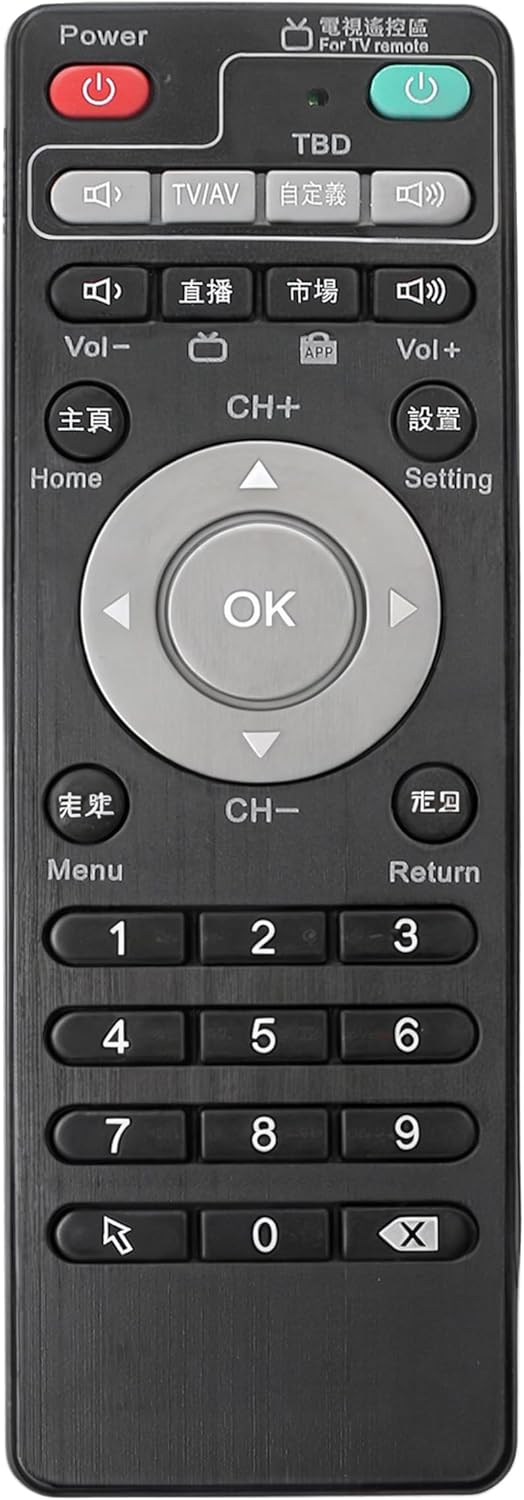


Customers who viewed this product also viewed
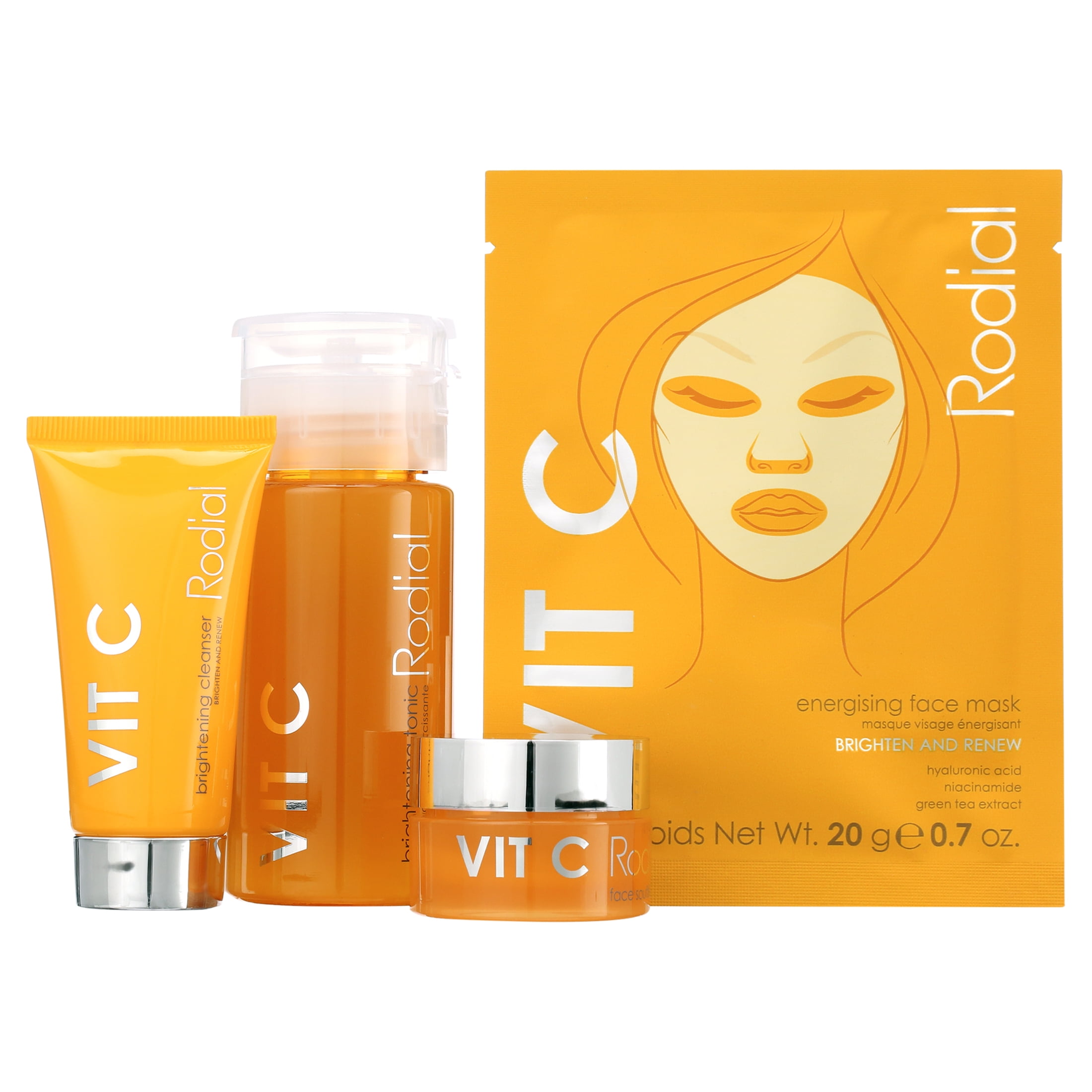
Premium Face Kit
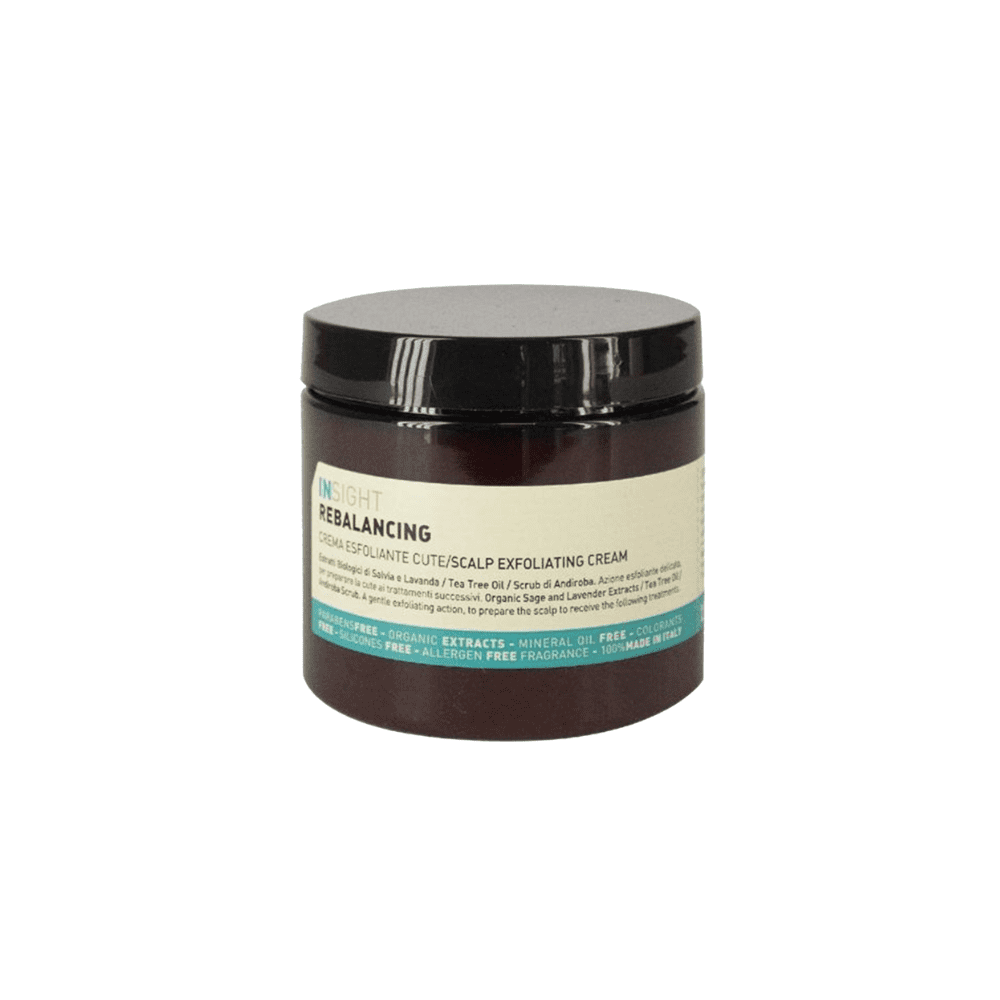



Correction of product information
If you notice any omissions or errors in the product information on this page, please use the correction request form below.
Correction Request Form